
Taking Measurements in the Project Viewer
The Project Viewer includes measurement tools for distance and area, so you can take dimensions directly off your delivered data without exporting to CAD or GIS first.
Measurements are available on any completed order. Open the project from My Projects, then select the Project Viewer tab.
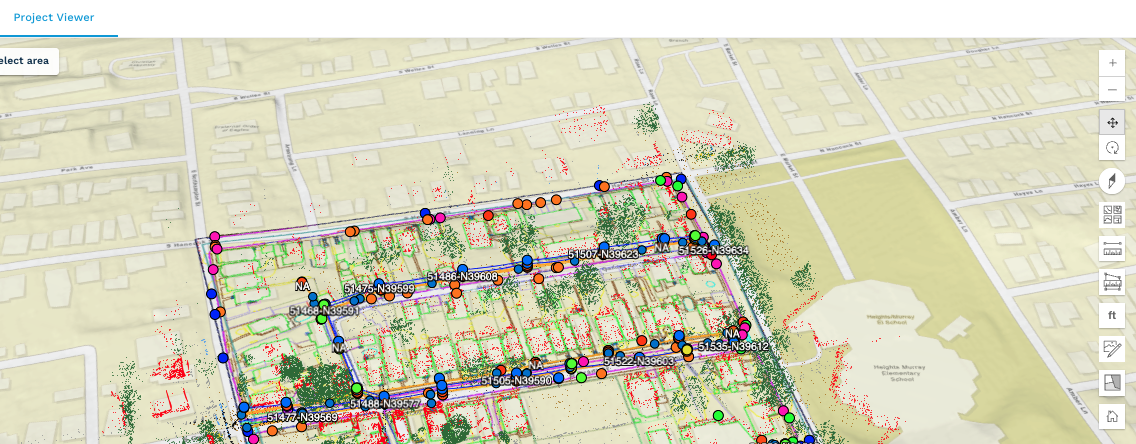
The measurement toolbar
The measurement tools sit in the vertical toolbar on the right edge of the map, below the zoom and navigation controls:
-
Distance — measures the length of a line you draw between two or more points
-
Area — measures the area and perimeter of a polygon you draw
-
Units (ft / m) — switches all measurement readouts between imperial and metric
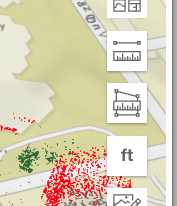
Set your units first
Click the ft / m button to toggle between feet and meters. The setting applies to every measurement you take afterward, so it's worth setting before you start rather than converting results later.
Measure a distance
-
Click the Distance tool.
-
Click your starting point on the map.
-
Click each additional point along the path you want to measure. Segment lengths appear as you go.
-
Double-click to finish the line.
The total length displays in your selected units. To measure something else, start a new line — see "Clearing a measurement" below.
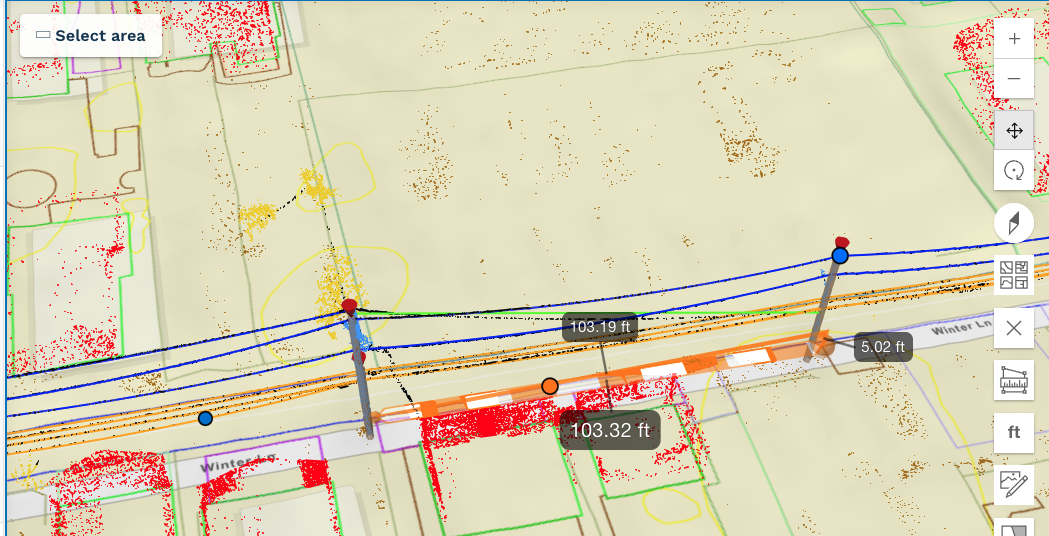
Tip: For a straight-line distance, two clicks are enough. For a path that follows a road, trench, or utility run, add a point at each bend so the total reflects the actual route rather than the straight-line shortcut.
Measure an area
-
Click the Area tool.
-
Click each corner of the area you want to measure.
-
Double-click to close the polygon.
The viewer returns both area and perimeter. You do not need to click back on your starting point — closing the shape is automatic.
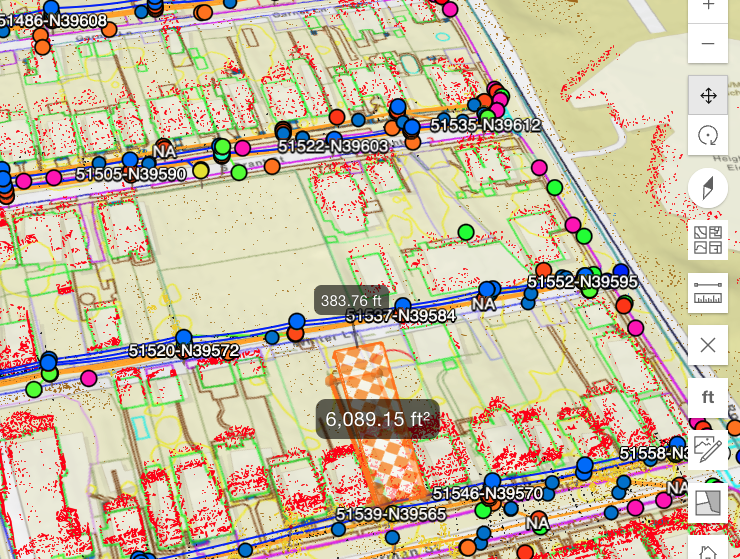
Clearing a measurement
Click the active tool again to turn it off and clear the measurement from the map. Starting a new measurement with the same tool replaces the previous one.
If you need to compare two dimensions side by side, note the first result before drawing the second.
What you're actually measuring
The Project Viewer displays several layers at once — vectors from the geodatabase, imagery, and a classified point cloud — and measurements are taken against what's rendered at the point where you click.
A few things to keep in mind:
-
Turn off layers you're not measuring. If a point cloud is displayed, clicks may land on points rather than on the ground surface. Use the layer toggles in the left panel to hide anything that isn't relevant to the measurement.
-
Distances are measured across the terrain surface, not as flat map distance. On sloped sites, a measurement may read longer than the same span would in a 2D plan view. That's expected.
-
Elevation Offset affects vertical position. The Elevation Offset field at the top of the left panel shifts the order's data up or down relative to the basemap. If it has been set to a non-zero value, that shift is reflected in what you're measuring against. Leave it at 0 unless you have a specific reason to change it.
How accurate are the measurements?
Measurements are only as accurate as the source data behind them. Accuracy depends on the ground sample distance of the imagery, the density of the point cloud, whether ground control was used during processing, and the coordinate reference system the project is in.
For details on how projects are georeferenced in the viewer, see Coordinate Reference Systems (CRS) in the Project Viewer.
Treat viewer measurements as a fast check for planning, scoping, and QA. For anything survey-grade, work from the delivered CAD or GIS files.
What changed from the old CAD View measurement tools
If you previously took measurements in the 2D CAD View, a few things work differently:
-
Measurements are now taken in the Project Viewer, against 3D data, rather than on a flat CAD canvas.
-
Distance and area are supported. Angle measurement is not currently available in the Project Viewer.
-
Only one measurement is shown at a time.
-
Units toggle between feet and meters directly in the toolbar.
The 2D CAD View measurement tools remain available for 2D deliverables.
Troubleshooting
My click isn't landing where I expect.
-
A layer you're not measuring is probably intercepting the click. Hide the point cloud and any layers above the surface you're targeting, then try again.
The measurement seems too long.
-
Check whether you're measuring across terrain on a sloped site, and confirm your units are set to what you expect.
The tool won't start a new measurement.
-
Toggle the tool off and back on to reset it.
Have questions? Contact support@airworks.io, or use the in-app support link from within the viewer.