
General
Which internet browser should I use?
Chrome and Firefox are the preferred browsers to use with AirWorks. Safari also works well. Other browsers may work, but if you are running into performance issues with our site, please try using one of the preferred browsers.
I’m using a preferred browser, but something is still unresponsive. What next?
If you are noticing performance issues while using one of the preferred browsers, you may find that clearing your cache resolves the issue. Below are some instructions for clearing your cache in our preferred browsers:
Clear your cache in Google Chrome
Clear your cache (and browsing history) in Safari
Clear your cache (only) in Safari
Account Administration
I forgot my password. How can I change it?
To reset your password, click on the Forgot Password? link on the web app log-in page and follow the prompts/instructions. You can find more details on this here.
I can’t find my reset password email. What should I do?
First check your spam folder. If it’s not there and it’s been more than 10 minutes since you requested your password reset, please contact support and we will assist you.
I can’t find my account setup email. What should I do?
Check your spam. If you can’t find it, click here to reset your password. If you still don’t receive it, contact support.
File Management
What file types do you accept?
We accept .tif and .tiff orthomosaic imagery, .las and .laz point clouds, .kml boundary files, and .zip archives of panoramic .jpg imagery. See Accepted File Formats for the resolution, density and metadata requirements that apply to each.
Why can’t I see my .TIF image?
Especially with larger file sizes these file types may take some time to render on the map. The larger a .tif file is, the longer it will take to display correctly on the map. If you do not see any tiles within 20 minutes of a completed .tif file upload, please contact support.
How many .LAS or .LAZ files can I upload?
The limit does not exist! You can upload as many .las and .laz files as necessary.
Why are my files taking so long to upload?
Large files take time to upload, especially on networks with limited bandwidth, shared networks, or home networks. The larger a file is, the longer it will take to upload, which is why we recommend tiling your files so that each is 3GB or less. This also reduces your upload times.
If you are not seeing progress within 20 minutes, the system may have stalled. In this case, please contact contact support.
Why are my AirWorks deliverables taking so long to download?
If it takes longer than 5 minutes for you to download your deliverables, please contact support.
Project Management
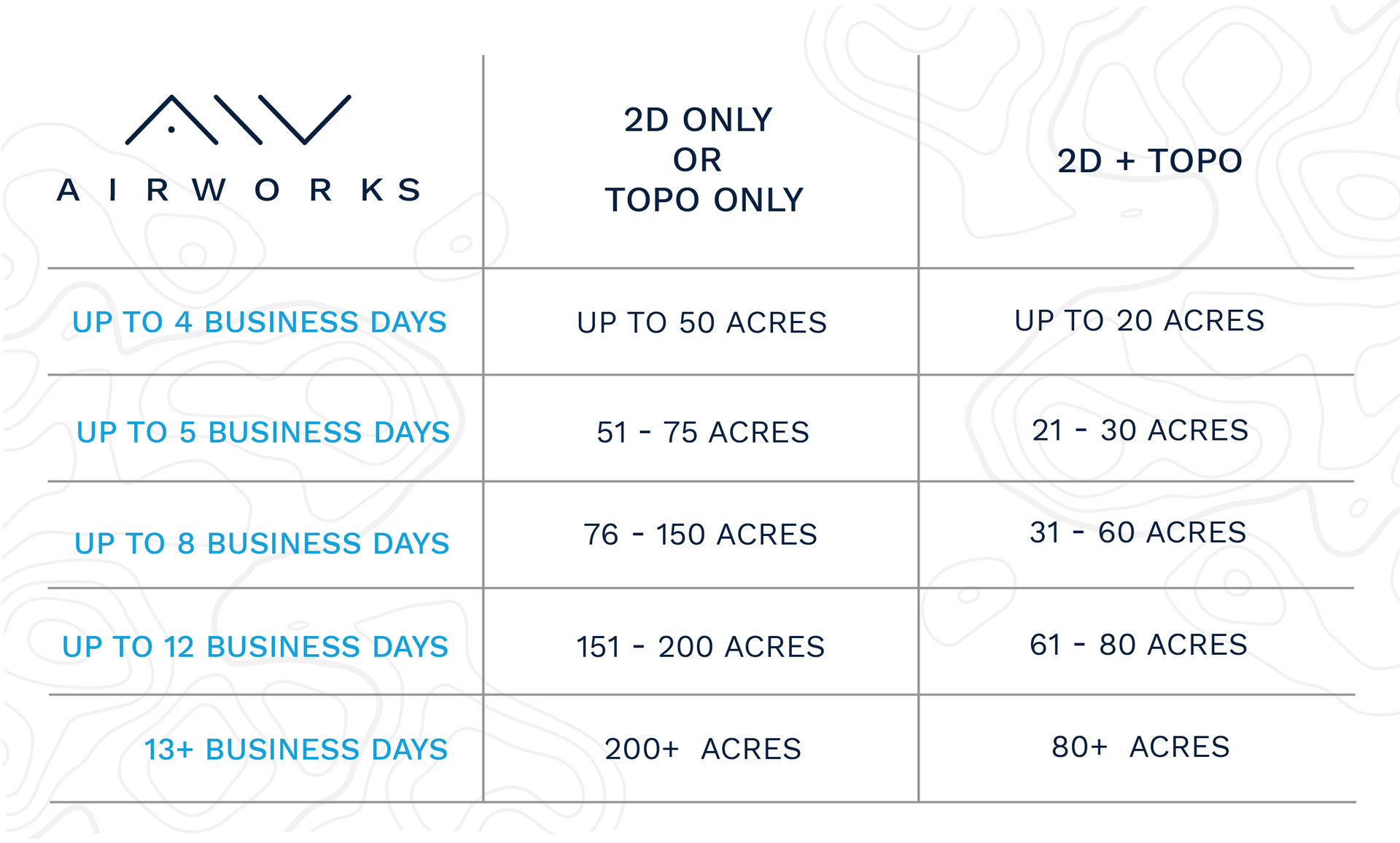
When is my project going to be ready?
You will receive a guaranteed delivery date in the kick-off confirmation email once you place an order. We typically beat these dates, and if you ever have questions or concerns about the date you received, please contact support.
Note: If you add any additional layers or add-ons this can affect your estimated turnaround time by 25% for every 4 add-ons.
I am unable to complete my order. What should I do?
A project can only be sent to processing when there is at least one data file (.tif/.las/.laz) uploaded and a valid boundary file (.kml) either drawn or uploaded. If you have uploaded your files and still cannot send your project to processing, you may not have an adequate amount of processing remaining on your account. In this case, you will need to upgrade your plan to get access to more processing acres. Please contact your account representative or sales@airworks.io.
If you have acres remaining, please contact support for assistance.
Can I apply a custom CAD template after I place my order?
At this time, we do not support changing a template after an order has been submitted for processing. If you need help with an order that you want to be canceled or changed, please contact support and someone will be in touch to discuss your options.