
We’re aware of an issue importing DXFs generated by AirWorks into AutoCAD. Luckily, there are just a few simple steps you need to take in AutoCAD when importing these files.
Changing the units in AutoCAD:
-
Open AutoCAD
-
Type the command “UNITS”
-
Within the Units tab, go to ‘Insertion scale’ and change the ‘units to scale inserted content’ from meters to your desired unit.
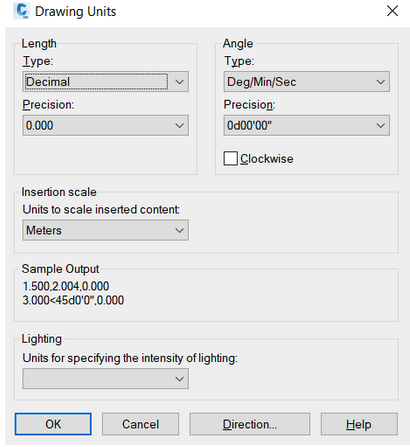
4. Type the command “Toolspace”
5. From the resulting Toolspace window, right click on the project’s name and go to ‘Edit Drawing Settings’
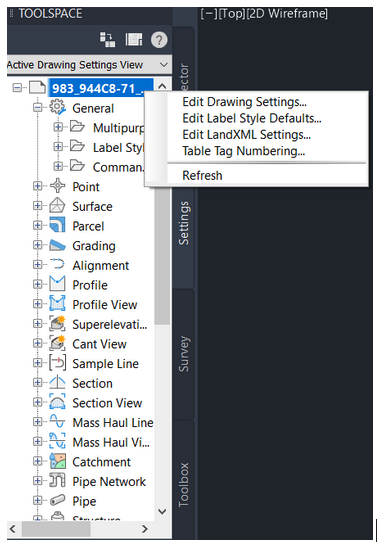
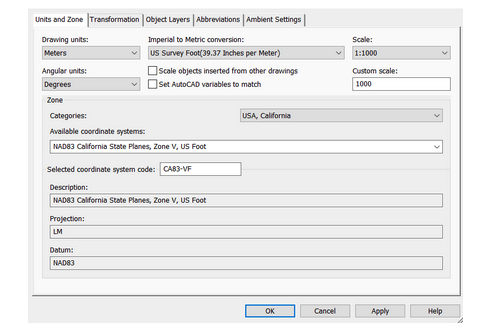
6. From Drawing Settings, go to “Drawing Units” and change the unit from meters to your desired unit.
Combining DXFs in AutoCAD:
You can combine two separate AirWorks DXFs with different units in AutoCAD by following these steps:
-
Open two windows in AutoCAD with the two DXFs you want to compare
-
‘COPYBASE’ from ‘0,0’ to ‘0,0’ one DXF into the other to combine them